
@mcp-b/webmcp-local-relay.
Configure your MCP client
Add the relay server to your MCP client configuration. This works with Claude Desktop, Cursor, Windsurf, Claude Code, or any client that speaks MCP over stdio.For Claude Desktop, you can also download the
.mcpb bundle from GitHub
Releases and double-click to install. No
terminal required.Add the embed script to your page
The relay discovers tools through a hidden iframe injected byembed.js. Add a single script tag to your page:
@mcp-b/global or
@mcp-b/webmcp-polyfill). A page that still runs a 5.x runtime must load
@mcp-b/webmcp-local-relay@5.
If your page already registers tools on document.modelContext, they are picked up automatically.
Tools registered after embed.js loads are also discovered through toolchange events and a polling
fallback; script order does not control discovery.
If you are new to WebMCP, this complete example loads @mcp-b/global, registers a tool, and adds the
embed:
http://localhost:3000. Do not open them as file:
URLs, whose opaque origin cannot be used for descriptor-based tool execution.
Verify the connection
Once the relay is running and your page has loadedembed.js, your AI agent has access to three management tools:
Tools also register as first-class MCP tools using their original name. When multiple tabs register a tool with the same name, the relay appends a short tab-ID suffix for disambiguation (e.g.
search_ed93, search_a1b2).
Ask your agent to list sources or tools to confirm the connection is working. Try webmcp.sh as a test target; it registers tools for SQL queries, entity management, navigation, and more.
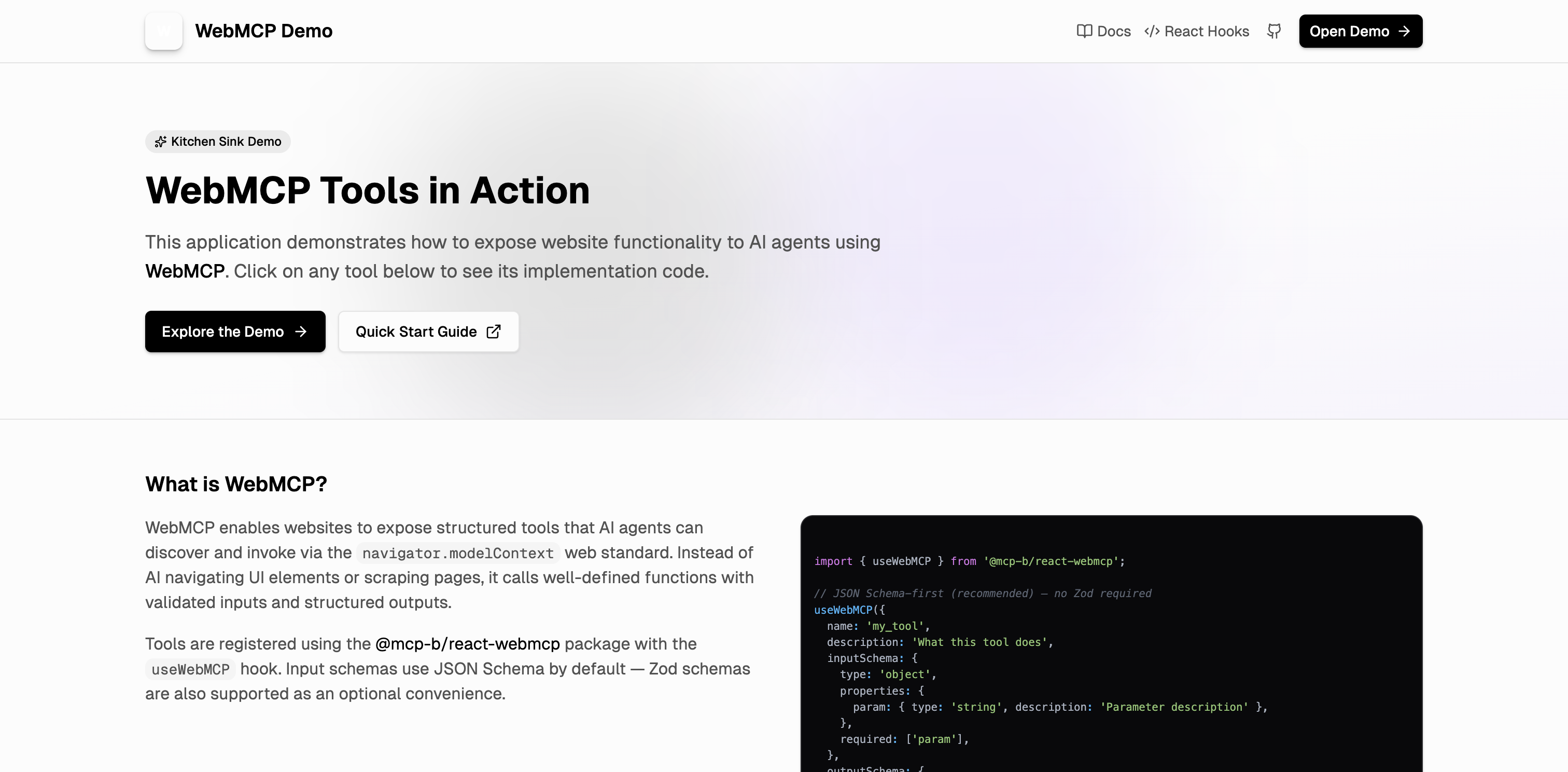
webmcp.sh: a live demo app with WebMCP tools you can relay to any desktop agent
Use a custom port
The relay prefers WebSocket port9333 on 127.0.0.1. If you need a fixed port, configure both sides:
Relay CLI:
--port selects that exact root port. A compatible relay already using it is shared in
client mode; an unrelated process using it causes startup to fail.
Restrict allowed origins
By default, the relay accepts connections from any browser page (*). For production or shared machines, restrict which origins can register tools:
--widget-origin flag validates the browser’s WebSocket Origin header. The injected widget
inherits the host page origin, so browser code cannot replace it with a different value in the
handshake. This flag is not local-process authentication; keep the relay bound to loopback unless
you provide another trusted boundary.
Handle multiple MCP clients
No configuration is needed. A relay started by a second MCP client joins the running relay in client mode, so both clients share the same browser connections. See Reconnection and client mode for port discovery and failover.Troubleshoot common issues
After a disconnect, the widget retries on its own and rediscovers the relay when you return to the
tab. See the relay reference
for the retry schedule.
Related pages
- Local Relay Reference for the full CLI options and architecture details
- Transports and Bridges for how the relay fits into the WebMCP transport layer
- Desktop Agent Relay Tutorial for a step-by-step walkthrough from scratch